> For the complete documentation index, see [llms.txt](https://docs.pagsmile.com/llms.txt). Markdown versions of documentation pages are available by appending `.md` to page URLs; this page is available as [Markdown](https://docs.pagsmile.com/reference/issuing-card-api/getting-started.md).

# Getting Started

## Get a Test Account and Create an APP

Once you become a Pagsmile partner, you will receive a unique Partner\_ID and access credentials for the Pagsmile Dashboard.

#### App Creation & Key Setup

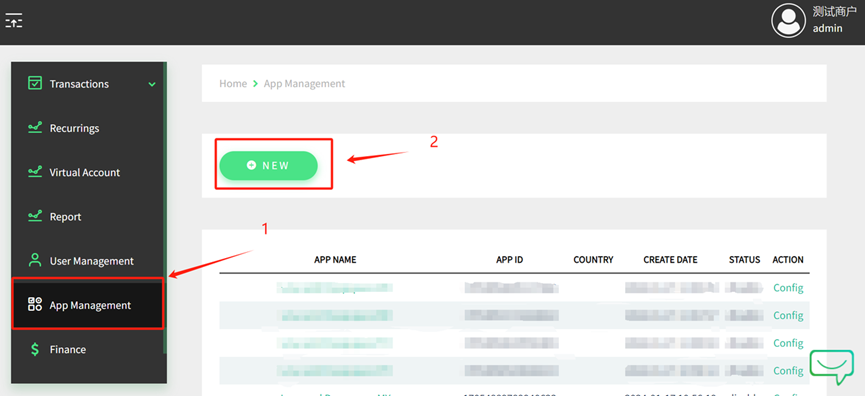
1. Create an App in the Pagsmile Dashboard.
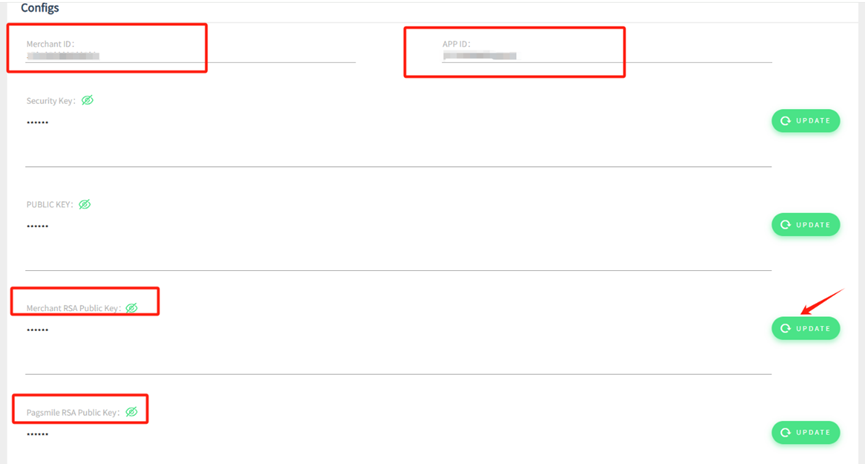
2. Retrieve the Pagsmile RSA Public Key (available in your app’s configuration).
3. Generate a pair of RSA Keys (2048-bit).
4. Upload your Merchant RSA Public Key to the Pagsmile Dashboard.

<figure><img src="/files/VgKbKtzPLPNvGTQ1VMeM" alt=""><figcaption><p>Login into Pagsmile's Dashboard and Create an App</p></figcaption></figure>

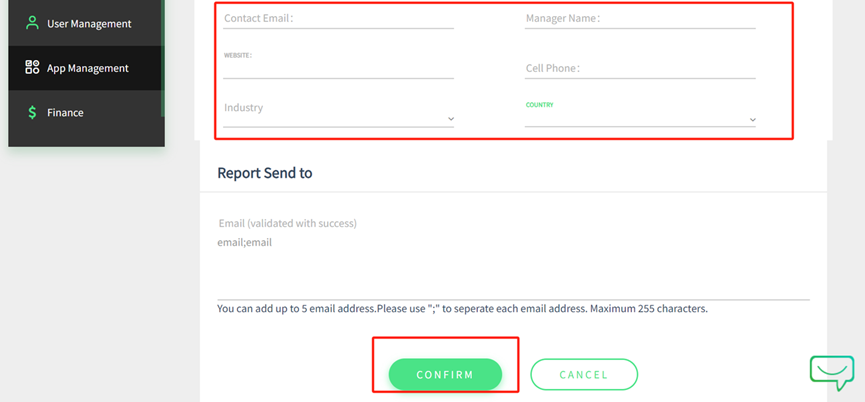
<figure><img src="/files/t3yZE4nQUERoDahNKkip" alt=""><figcaption><p>Fill in the required information to create the app</p></figcaption></figure>

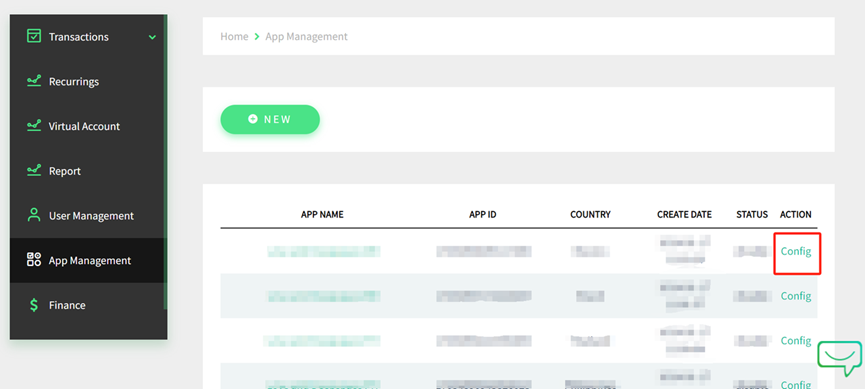
<figure><img src="/files/qzGt2xAKiWWV57mnhouk" alt=""><figcaption><p>After creating the app, click Config button to view keys</p></figcaption></figure>

<figure><img src="/files/AgcBHjcnVQMFE8c1nehi" alt=""><figcaption><p>Get Merchant ID (Partner ID), APP ID, and Pagsmile RSA Public Key<br>Update your RSA public key in the Merchant RSA Public Key section</p></figcaption></figure>