> For the complete documentation index, see [llms.txt](https://docs.pagsmile.com/llms.txt). Markdown versions of documentation pages are available by appending `.md` to page URLs; this page is available as [Markdown](https://docs.pagsmile.com/reference/e-com-platform/shopify.md).
# Shopify
Pagsmile provides three Shopify payment apps. Choose the app that matches the payment method and checkout experience you want to offer.
The onsite apps allow customers to complete the supported payment flow within the Shopify checkout experience. The offsite app redirects customers to the Pagsmile-hosted payment page to complete their payment.
{% hint style="info" %}
The credit card onsite, Pix onsite, and offsite payment experiences are provided through separate Shopify apps. Install the app that corresponds to the payment experience you want to enable.
{% endhint %}
### Before you begin
Make sure that you have:
* A Shopify account and access to the store where the app will be installed.
* An active Pagsmile merchant account.
* The Merchant ID, App ID, and Security Key provided in the Pagsmile Merchant Dashboard.
### Install a Pagsmile payment app
1. Go to [shopify.com](https://www.shopify.com/) and log in to your Shopify account.
2. Open the Shopify App Store page for the app you want to install:
* Credit card onsite: [Pagsmile Card Payment](https://apps.shopify.com/custom-credit-card)
* Pix onsite: [Pagsmile PIX Onsite](https://apps.shopify.com/pagsmile-pix)
* Offsite payments: [Pagsmile](https://apps.shopify.com/pagsmile-payment)
Select **Install** on the app page.
3. On the **Choose an account** page, select the Shopify account associated with your store.
4. Select the store where you want to install the Pagsmile app.
5. After installation, enter the Merchant ID, App ID, and Security Key from your Pagsmile Merchant Dashboard, and then connect the app to Pagsmile.
6. Turn on the **Test mode** toggle, and then click **Save**.
* Enable **Test mode** to test the payment flow before accepting live payments.
* Before enabling production payments, make sure that your Shopify store is not in development mode.
7. After activation, the selected Pagsmile payment app is ready to use.
8. Place a test order and verify that the expected payment option is displayed at checkout.
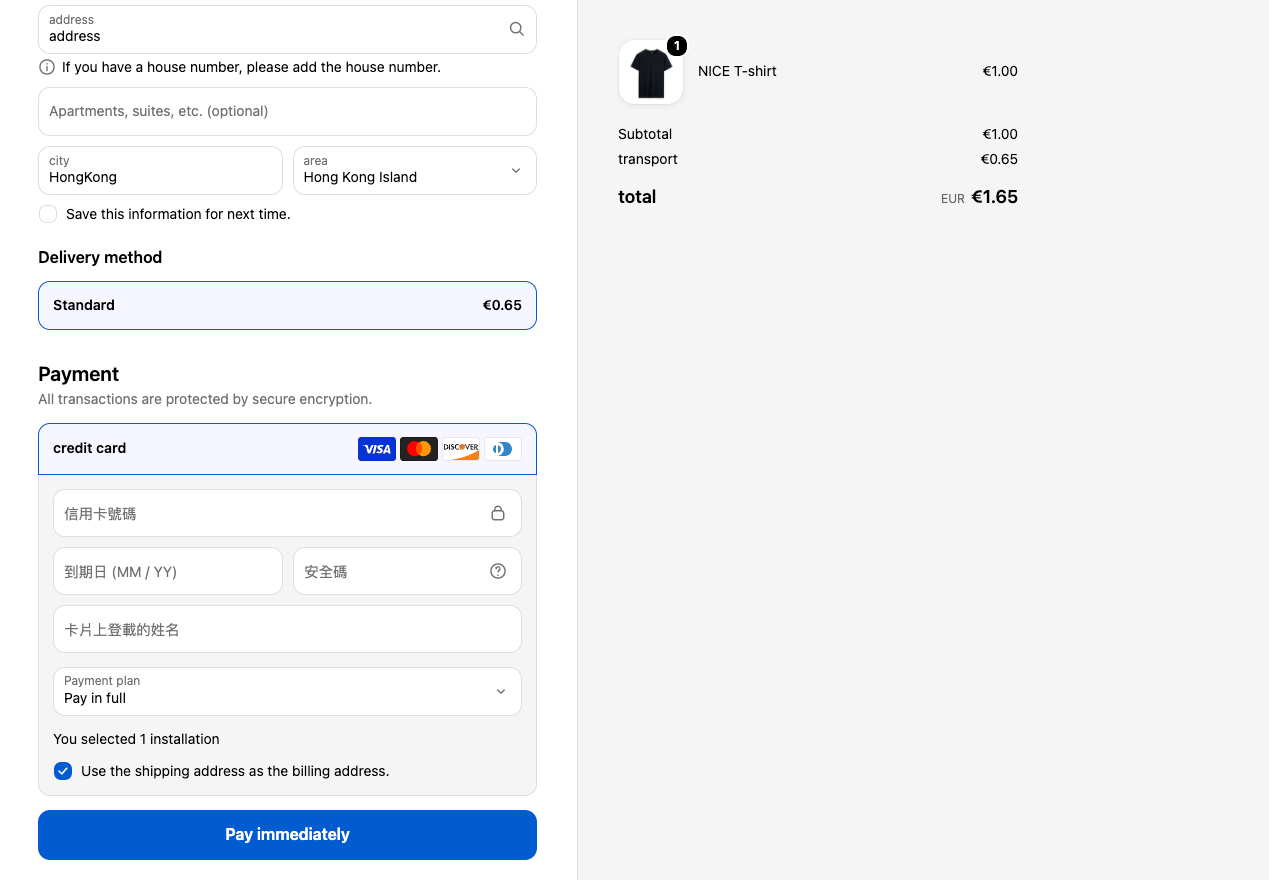
#### *Credit Card Onsite Checkout*
#### *Pix Onsite Checkout*
{% hint style="warning" %}
Complete a successful test payment before enabling the app for production transactions. Never expose your Security Key in screenshots, storefront content, or client-side code.
{% endhint %}